

Connecting the phone to your account
Updated:
Connecting the phone to your account takes about a minute. You need the app installed and the dashboard open on your computer.
Step by step
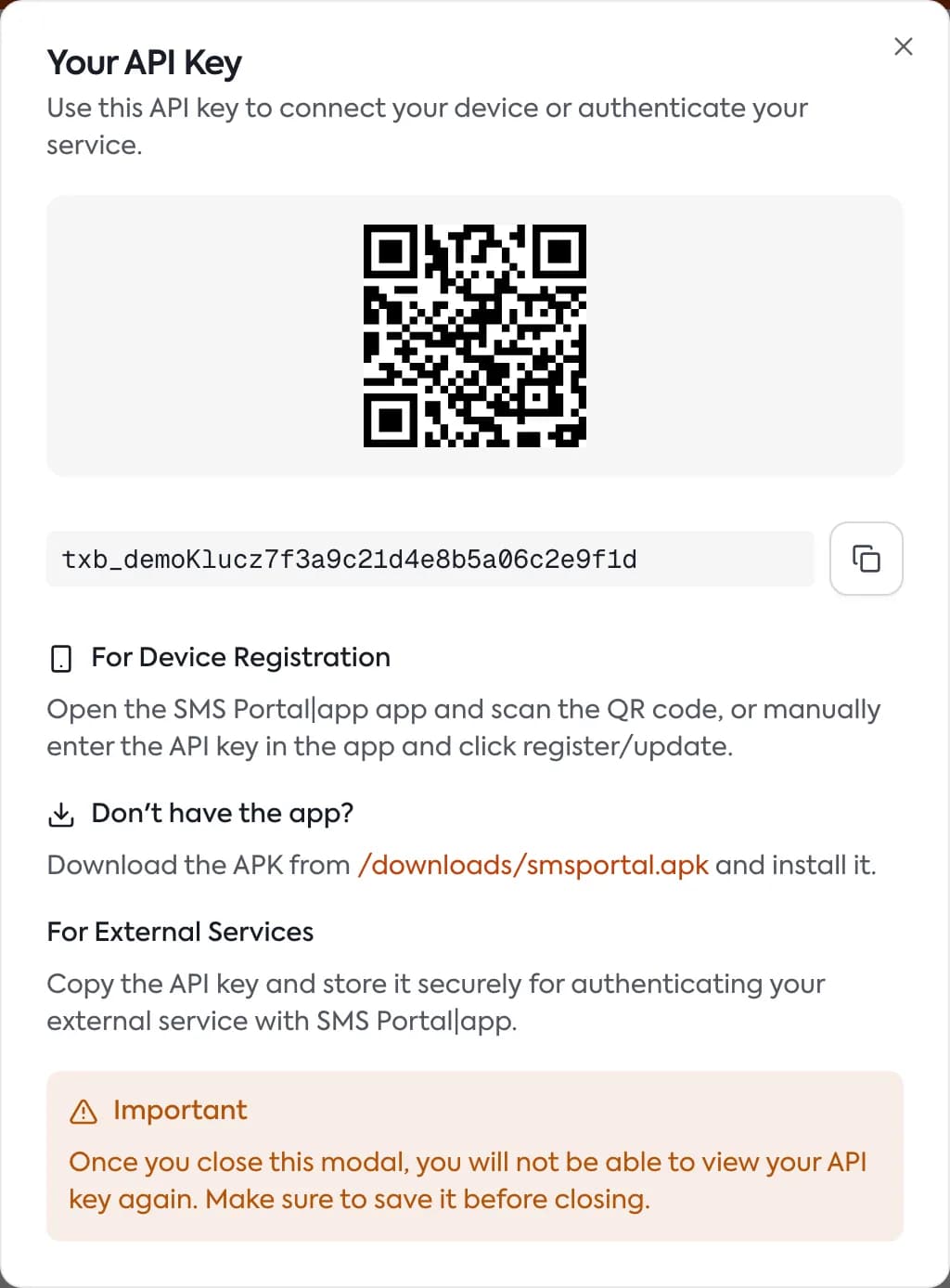
- In the dashboard, in the “Get started” card, click “Generate key & show QR”. An API key is a long string of characters that works like the phone's password. The dashboard shows it only once, so save it right away.
- On the phone open the app and tap “Get Started”.
- On the “Connect your account” screen choose “Scan QR Code” and scan the code from your computer screen. You will see “QR scanned successfully”. You can also choose “Enter Manually” and paste the key.
- Tap “Next →”. On the “Set up your device” screen enter a name for the phone (it is optional), for example “My Gateway Phone”, and tap “Register Device”.
- On the “Grant Permissions” screen tap “Grant All Permissions” and allow SMS. Each permission is explained in SMS and notification permissions.
- When you see “You're all set!”, the phone is connected. Next to its name you should see “Ready to send” and “Online”.
Check it in the dashboard
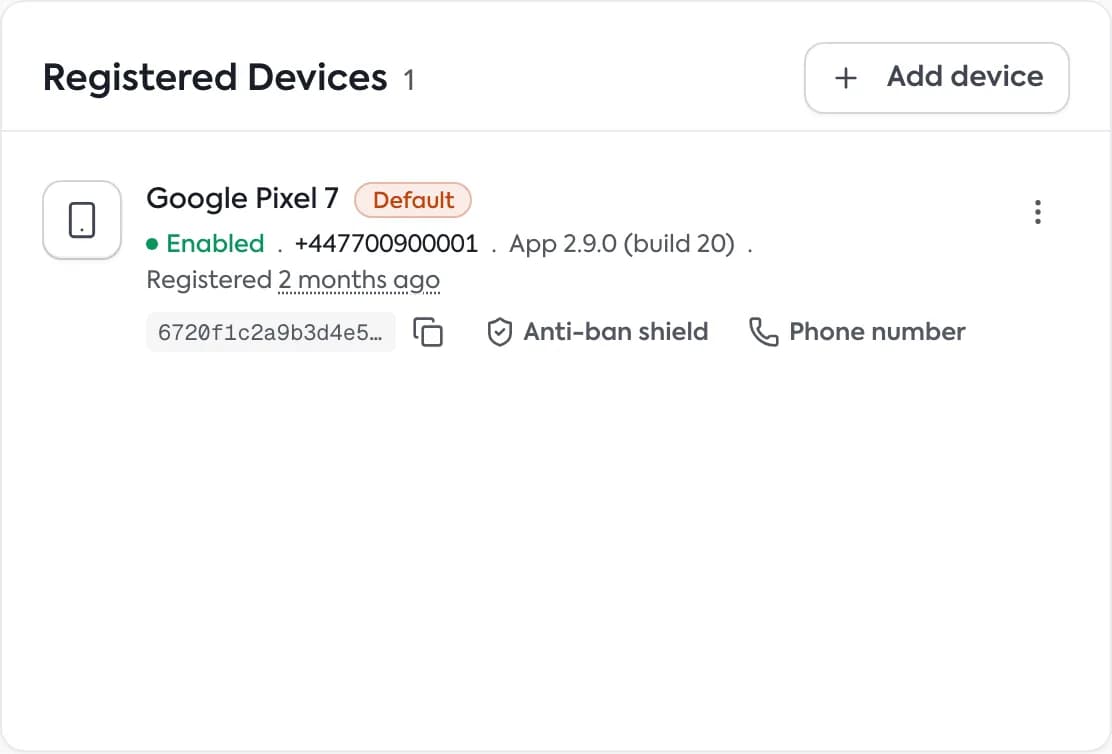
After a moment the phone appears in the dashboard under “Registered Devices”. If it is on the list and labelled “Enabled”, the connection worked.
If the phone shows “SMS permission off”, messages will not go out. Go back to the permissions.
Reinstalling
When you reinstall the app on the same phone, do not create a second device. On the “Set up your device” screen choose “This device was previously registered”, enter the Device ID and tap “Reconnect Device”. You find the ID in the dashboard, under “Devices”.
Phone limit
No plan limits the number of phones. More: Several phones on one account.
What next
Questions and answers
- The QR code is gone and I did not save the key. What now?
- Generate a new key in the dashboard. A key is shown only once, so save it right away.
- I am reinstalling the app. Should I create a new device?
- No. In the app choose “This device was previously registered” and enter the Device ID from the dashboard.
- The phone does not appear in the dashboard. Why?
- Check the phone's internet and make sure the key comes from the same account. Refresh the dashboard and look under “Registered Devices”.
Related guides
Didn’t find the answer? Contact us