

How to Avoid a SIM Card Block When Sending Bulk SMS: The Anti-ban Shield Step by Step
Why a carrier may restrict a SIM card during bulk SMS and how to lower the risk: batches, random pauses, daily limits, working hours and auto-pause.
A SIM card block during bulk SMS rarely comes from one message. It comes from how the whole traffic looks: how many texts go out, how fast, to whom and with what wording. Below we explain what raises that risk, how to set up the Anti-ban shield in SMS Portal|app step by step, and what to do if a card gets restricted anyway. Up front, honestly: the shield reduces the risk, it does not guarantee anything.
Why do SIM cards get blocked during bulk sending?
Usually several signals add up. The carrier cannot see your intentions, only a traffic pattern, and that pattern can resemble spam.
- Many messages in a short time. Android lets a regular app send at most 30 SMS per minute. Even below that cap, hundreds of texts in a few minutes look different from normal subscriber activity.
- Many different recipients. Lots of messages to lots of different numbers, rather than to a few regular contacts, is the typical picture of a mass campaign.
- Repeated wording with links. Anti-scam filters catch identical messages containing URLs, especially shortened ones.
- Odd sending hours. Hundreds of texts at 3 a.m. rarely look good.
- Lots of failures and complaints. When some recipients do not want the messages, the risk goes up.
So a good phone alone solves nothing. Speed, rhythm and content are what count.
How does the Anti-ban shield work?
The shield splits a campaign into batches of N messages. There is a random pause between batches and a random gap between messages inside a batch, so sending never has an even, mechanical beat. On top of that come a daily limit, working hours, SIM rotation and an automatic pause after a run of failures. The full feature description is on the Anti-ban shield page.
Step 1: pick a speed
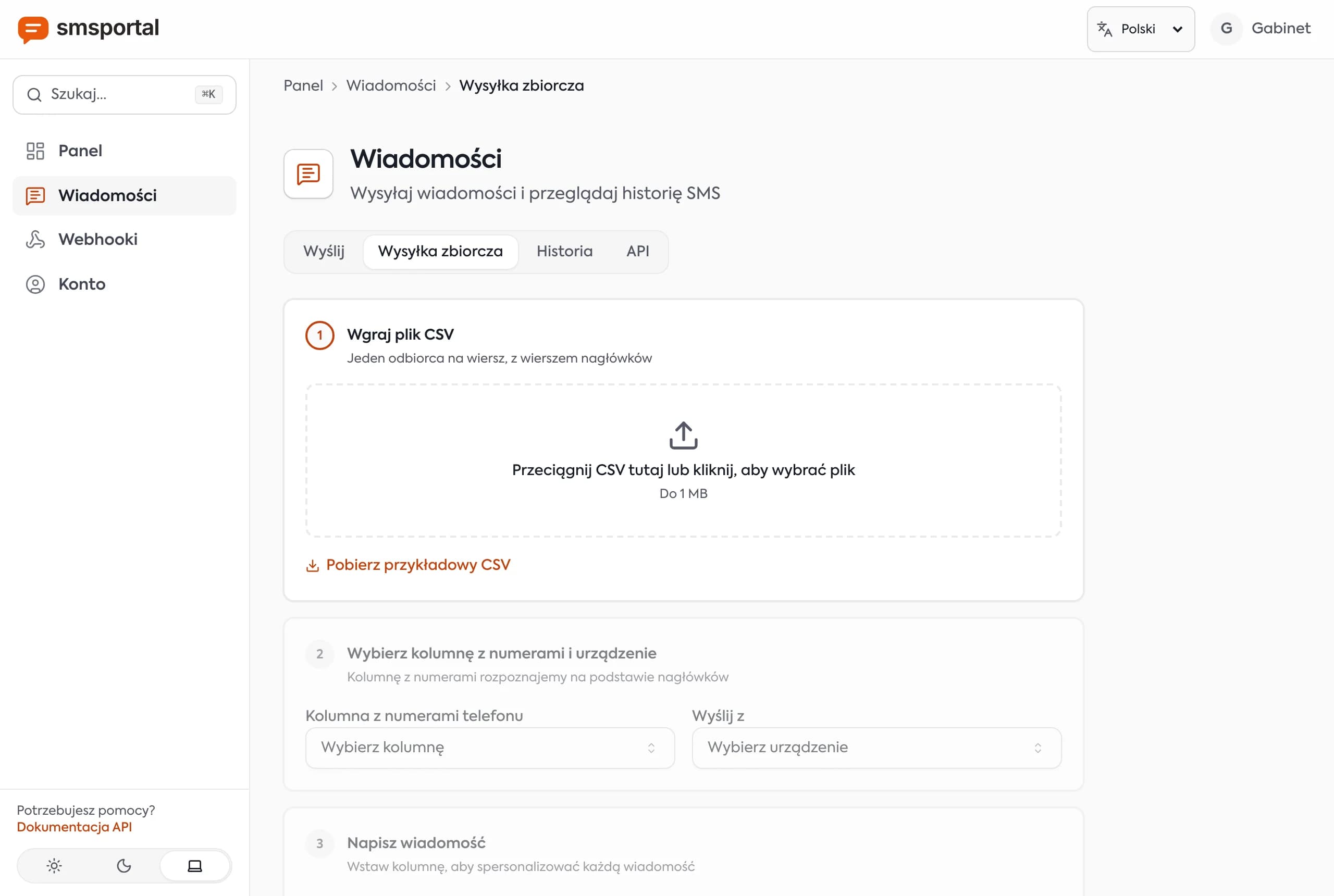
You choose the speed in the bulk-send form (sending from a file is covered in Bulk SMS From a CSV or Excel File).
| Speed | Batch | Pause between batches | Gap inside a batch |
|---|---|---|---|
| Careful | 10 messages | 3–8 min | 8–25 s |
| Normal | 20 messages | 1.5–4 min | 5–15 s |
| Fast | 40 messages | 30–90 s | 3–8 s |
| Custom | 1–200 messages | your choice | at least 2 s |
A new card, or a number that has sent little so far, should start with Careful. Use Fast only for short messages people are expecting. In Custom mode the gap cannot be shorter than 2 seconds, because of the Android limit.
Step 2: set a daily limit per SIM card
The remaining options live in the dashboard, in the device settings. The daily limit works per SIM card and also counts messages already sent earlier the same day. If a campaign has 600 numbers and the limit is 150, sending spreads over several days with no effort from you. The dashboard suggests 150 messages per day, but that is a starting point, not a rule: for a fresh card, start lower.
Step 3: turn on working hours
Choose a window, for example 09:00–20:00, and a time zone. Messages outside the window wait until morning. The window may cross midnight if you run a night service. Besides being considerate to recipients, it removes night-time spikes that look suspicious.
Step 4: SIM rotation
If your phone has two cards, turn on rotation. Messages leave alternately from both cards, and each has its own daily limit. The load is shared, so neither card sits at its ceiling all the time.
Step 5: auto-pause and manual pause
By default a campaign stops after 5 failed SMS in a row and the dashboard shows a warning. That is often the first sign something is wrong, so it is better to react than to keep sending. You can also press Pause at any time and Resume later. After resuming, the rest of the messages are re-planned from the current moment.
Single messages, such as login codes, are never delayed: the shield applies to bulk sending only.
Note: the random gap inside a batch needs app version 2.10.4 or newer. Older versions still get batches and pauses.
What to do if the card has been blocked
- Pause sending. More attempts only make it worse.
- Contact the carrier. Ask what exactly was restricted (outgoing SMS or the whole service) and for how long.
- Wait. Restrictions often expire after a while or once the matter is explained.
- Come back carefully. Use the Careful speed, a low daily limit and short working hours, and watch the first campaign after the break closely.
- Review the list and the text. Check that every recipient consented and that the message does not read like template spam.
Good practice that matters more than settings
- Have recipient consent. It is a legal requirement and the best protection against complaints. For Polish rules, see the Polish article on SMS, GDPR and marketing consent: SMS, RODO i zgoda marketingowa.
- Personalize the text. A name, a date, an order number: messages that differ from each other look like correspondence, not a blast.
- Avoid shortened links. A normal, recognizable company address raises fewer suspicions than a short link.
- Include opt-out information. It reduces complaints.
- Do not start with a big campaign. Send the first 50 to 100 messages carefully and watch delivery.
- Know the limits of the method. For very large lists, a wholesale provider with a carrier contract is often a better fit. See when not to use a phone as a gateway.
Summary
When you send in bulk from your own SIM card, the risk of a block comes down to speed, rhythm and content. The Anti-ban shield in SMS Portal|app spreads traffic over time, enforces limits and stops itself when something goes wrong. That is a real reduction in risk, not a guarantee, and the best protection remains recipient consent and honest wording.
Next step: open Bulk send in the dashboard and run your first campaign at the Careful speed. Feature details: Anti-ban shield.
Frequently asked questions
Does the Anti-ban shield guarantee my SIM card will not be blocked?
No. The shield lowers the risk because sending looks more like human behavior: batches, random pauses, a daily limit and working hours. The carrier still makes the call, and the message text, recipient consent and the card's history all play a part.
Which speed should I start with?
Careful, especially for a new SIM card or a number that has not sent many texts before. After a few uneventful campaigns you can move to Normal. Keep Fast for short, urgent sends to people who are definitely waiting for the message.
Does the shield delay login codes and single messages?
No. The shield only applies to bulk sending. Single messages, such as one-time codes sent through the API, go out right away without waiting for batches or pauses.
What should I do if the carrier restricted sending on my card?
Pause your campaigns and contact the carrier to find out exactly what was restricted and for how long. Wait for it to be lifted, then resume with the Careful speed and a low daily limit.
Does the shield work with older app versions?
Yes, with one limit. The random gap between messages inside a batch needs app version 2.10.4 or newer. Older versions still receive messages in batches with pauses between them.