

Connecting WordPress to SMS Portal|app
Updated:
The connection lets the plugin send SMS from your account and receive statuses and replies. It works like "Sign in with": you do not copy passwords or keys.
Connect your site to your account
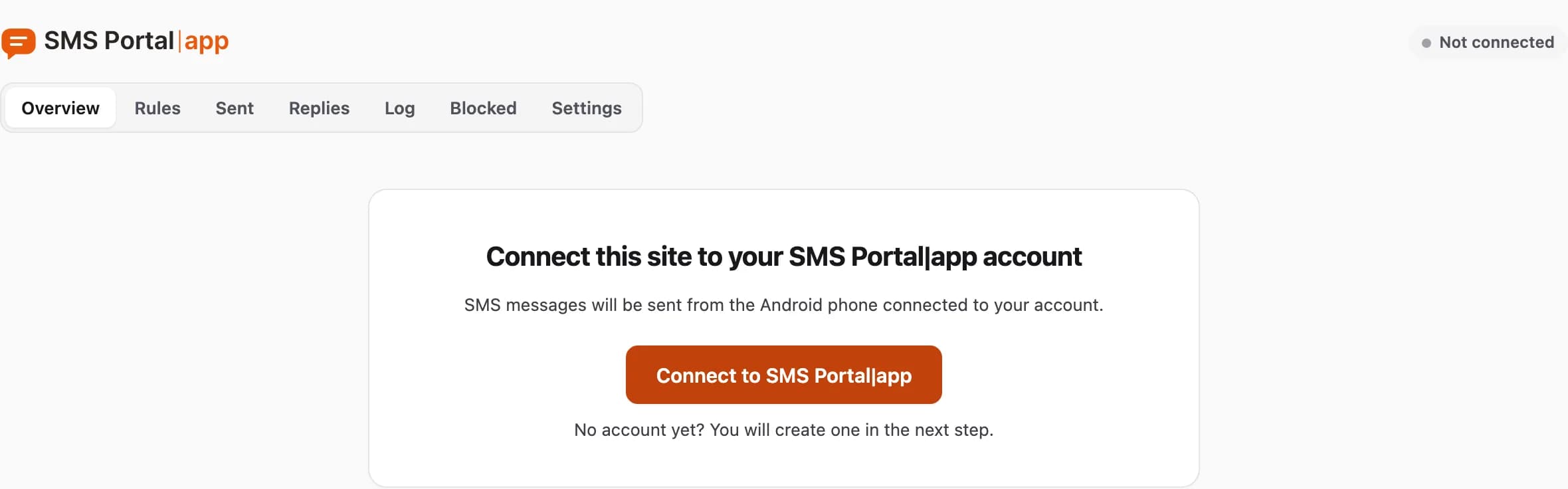
- In the WordPress menu open SMS Portal|app. You see the Overview tab.
- Click Connect to SMS Portal|app. No account yet? You will create one in the next step.
- Sign in to your SMS Portal|app account.
- Pick the phone that should send the SMS and approve access.
- You return to WordPress with the message "Connected to SMS Portal|app."
The phone needs the app installed and linked to your account. See installing the Android app.
What you see once connected
The Overview shows that everything works:
- Phone: online or offline, battery level, network type (Wi-Fi or mobile data) and the time of the last contact.
- This month: how many SMS this site sent and how many were delivered.
- Whole account: how much of your plan limit the whole account has used.
- Recent sends: the latest messages from this site.
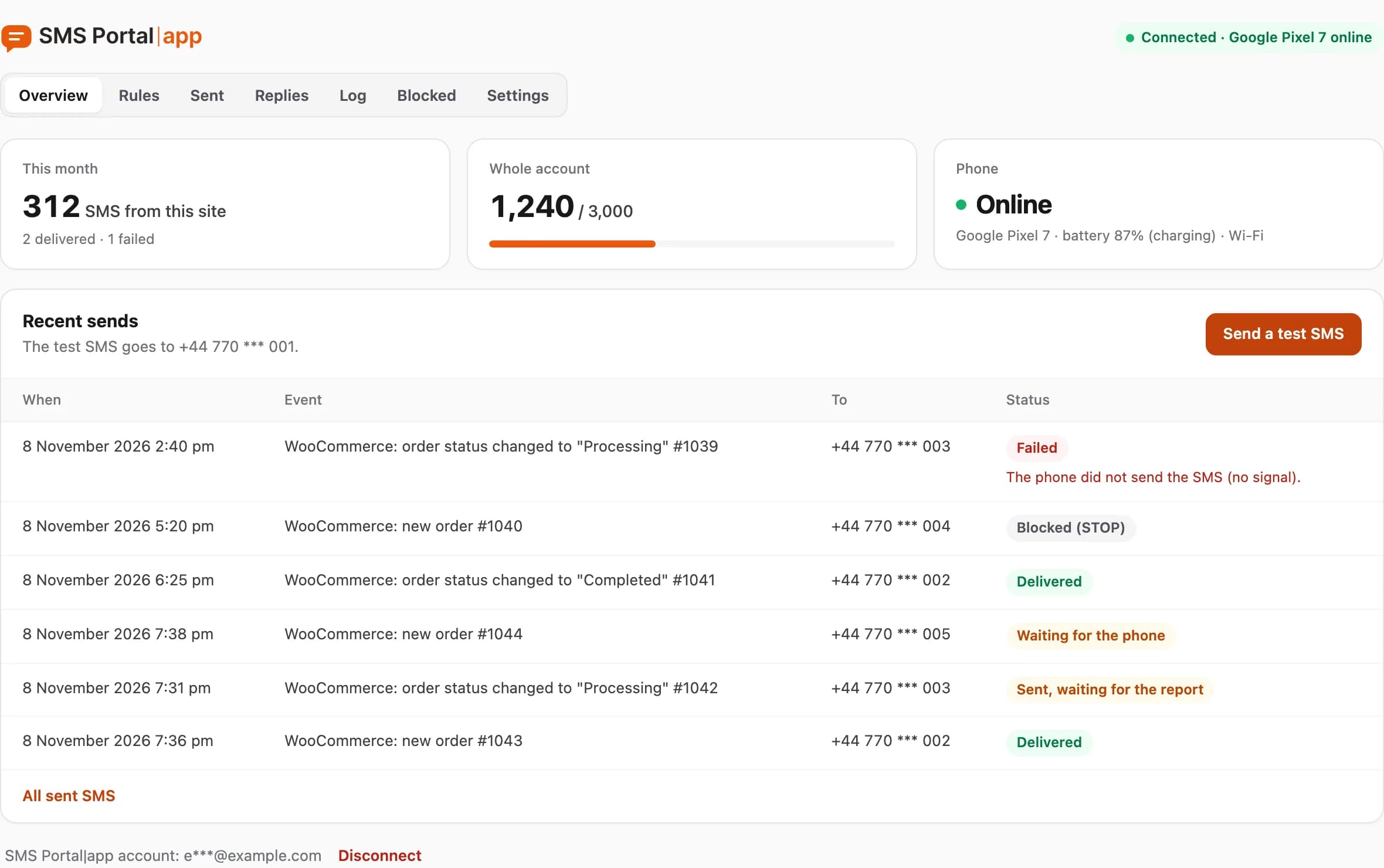
Click Send a test SMS to check that it all works. The message goes to the number you enter in Settings. If you have not entered it yet, the plugin asks for it.
When the phone is offline, SMS wait until it is back on the network. What to do then is in the phone shows "offline".
Disconnecting
Click Disconnect on the Overview screen. You can also remove the connection in the SMS Portal|app dashboard, under Integrations. The plugin then learns the key stopped working and asks you to connect again. Rules and history stay.
What next
Add your first automatic SMS under Rules: rules and variables.
Questions and answers
- Do I have to copy an API key?
- No. The plugin receives its own access key and stores it only in your WordPress database.
- Can I end the connection from the SMS Portal|app dashboard?
- Yes. Either side can remove it: use the Disconnect button in WordPress, or the Integrations tab in the SMS Portal|app dashboard.
Related guides
Didn’t find the answer? Contact us