

Rules: automatic SMS in WordPress
Updated:
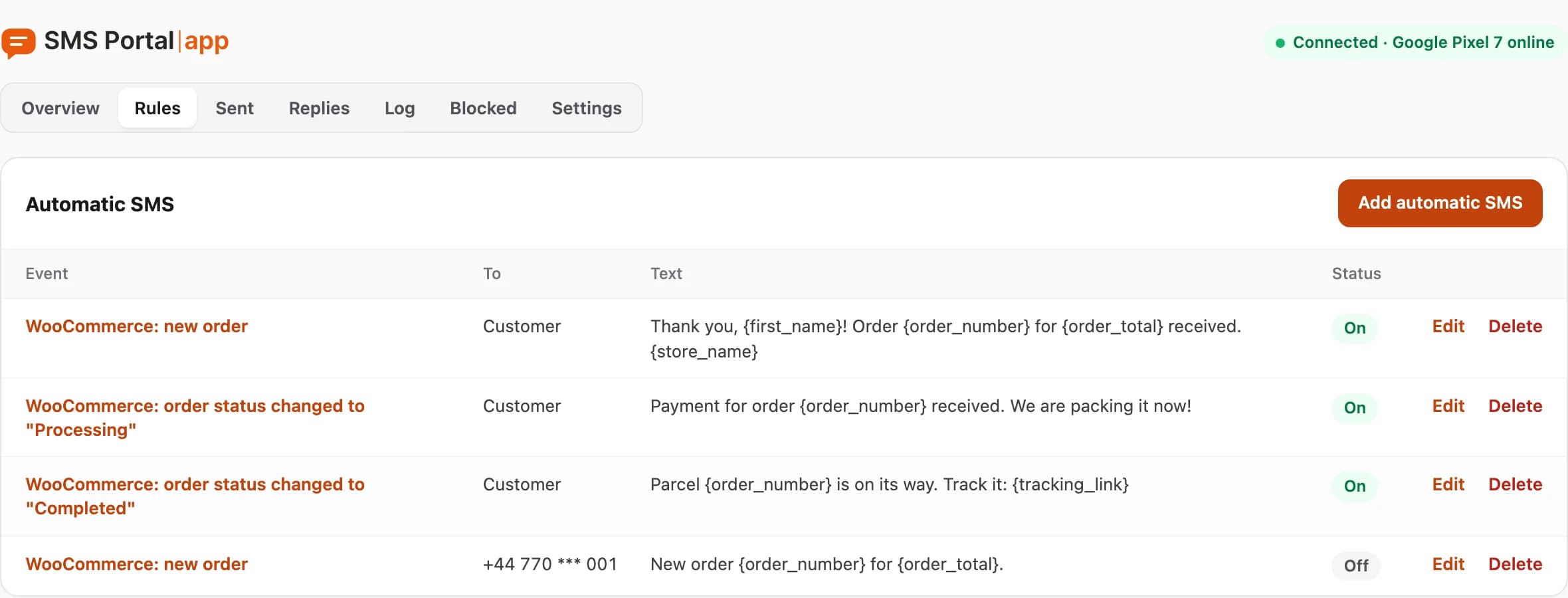
A rule tells the plugin: "when X happens, send this SMS to Y". An event is, for example, an order status change, a form being sent or a new booking.
Add a rule
- Open SMS Portal|app → Rules and click Add automatic SMS.
- 1. Event: pick the plugin, then the event that should send the SMS. You can change it later with Change.
- 2. To whom: choose Customer (the phone from the order, booking or form) or Fixed number (for example yours, to hear about new orders).
- 3. Text: write the SMS. Insert a variable by clicking its name in the list "Variables: click to insert".
- Click Save. The Enabled switch decides whether the rule runs.
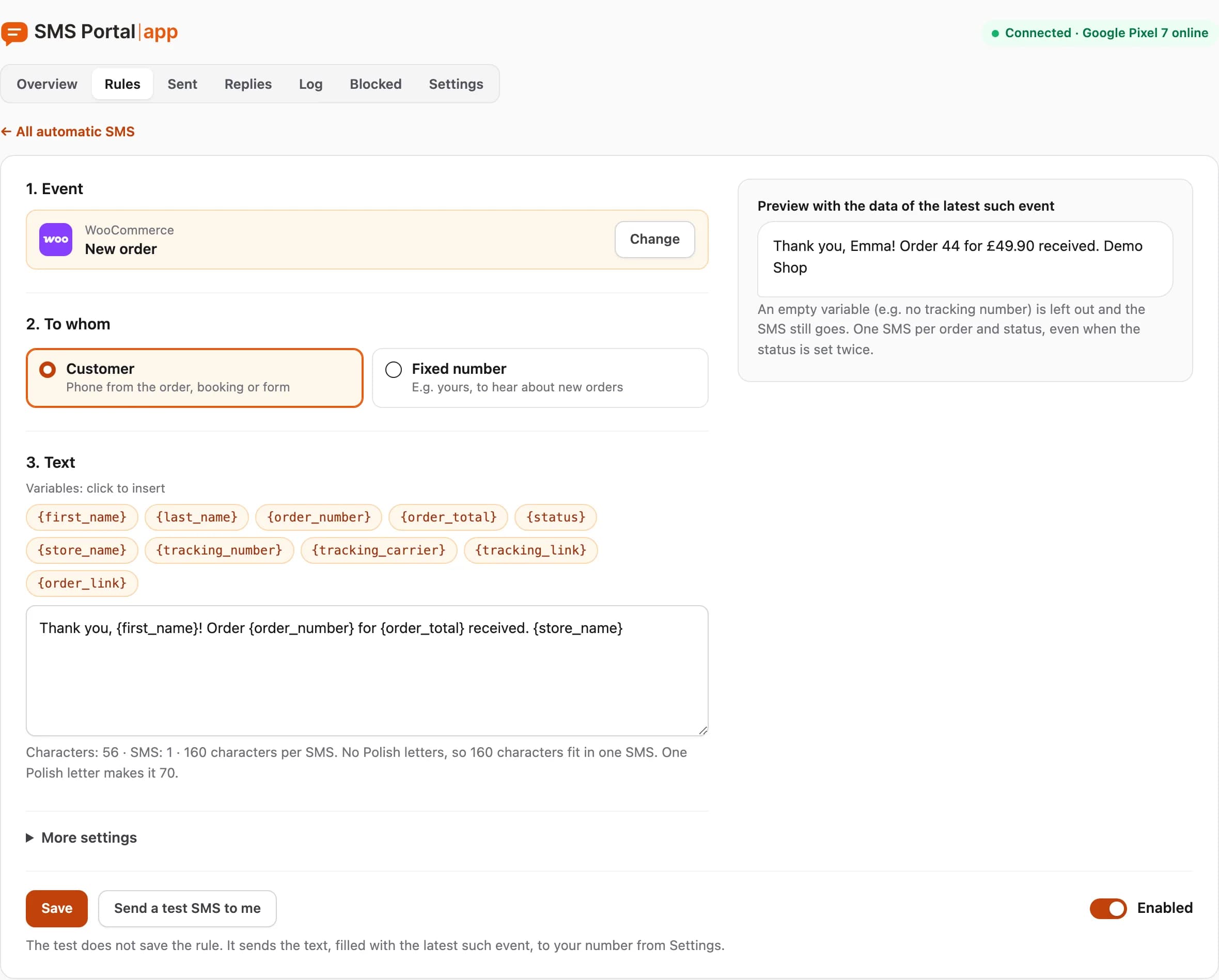
The list of events depends on which plugins are active. The articles cover the supported plugins: WooCommerce, forms, bookings and Ultimate Member and Uncanny Automator.
Variables
A variable is a spot in the text that the plugin replaces with data, for example {first_name} with the customer's first name. Polish names work the same way: {imie}, {numer_zamowienia}, {nazwa_sklepu}. Example:
Hi {first_name}, order {order_number} is ready. {store_name}
An empty variable, for example a missing tracking number, disappears from the text and the SMS still goes.
Counter and preview
Under the text field you see "Characters: X · SMS: Y". Without Polish letters, 160 characters fit in one SMS. One Polish letter makes it 70. A longer text goes as several parts, which the recipient's phone joins into one message. More: special characters and SMS length.
The preview shows the text with the data of the latest such event. If there has been none yet, it shows the variable names.
Test and SMS lifetime
The Send a test SMS to me button sends the text to the number from Settings and does not save the rule.
Under More settings, the field "Do not send if it is late by more than" (hours) sets how long an SMS may wait for the phone. The default is 12 hours, and 0 means never. After that time the SMS gets the status Expired.
What next
Check the status of sent messages under Sent: Sent and Log.
Questions and answers
- Will a customer get the same SMS twice?
- No. Each event, for example order 1042 set to Completed, sends at most one SMS, even when the status is set again.
- What happens when a variable is empty?
- The variable disappears from the text and the SMS still goes. This happens, for example, when there is no tracking number.
Related guides
Didn’t find the answer? Contact us