
n8n SMS: how to send and receive text messages in a workflow from your own phone
Send SMS from n8n with the HTTP Request node and receive replies with a webhook. Includes paste-ready JSON, Google Sheets, Slack and AI reply recipes.
n8n SMS automation comes down to one HTTP request. smsportal has no dedicated n8n node, and you do not need one: send with the HTTP Request node, receive with the Webhook node. Messages go out from your own number, so customers can reply, and your workflow can react to the reply. Below are the exact node settings, paste-ready JSON and three recipes.
What do you need to send SMS from n8n?
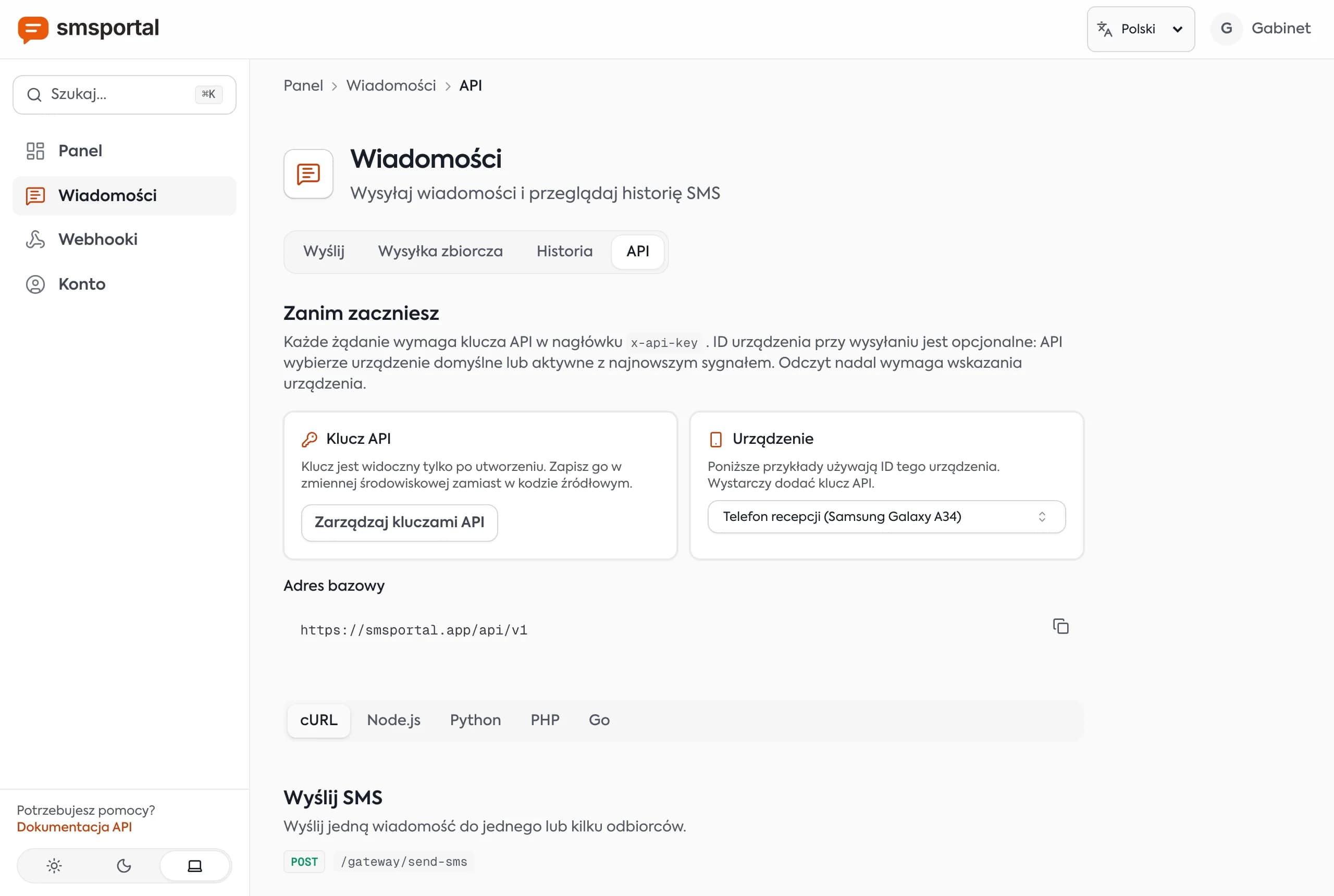
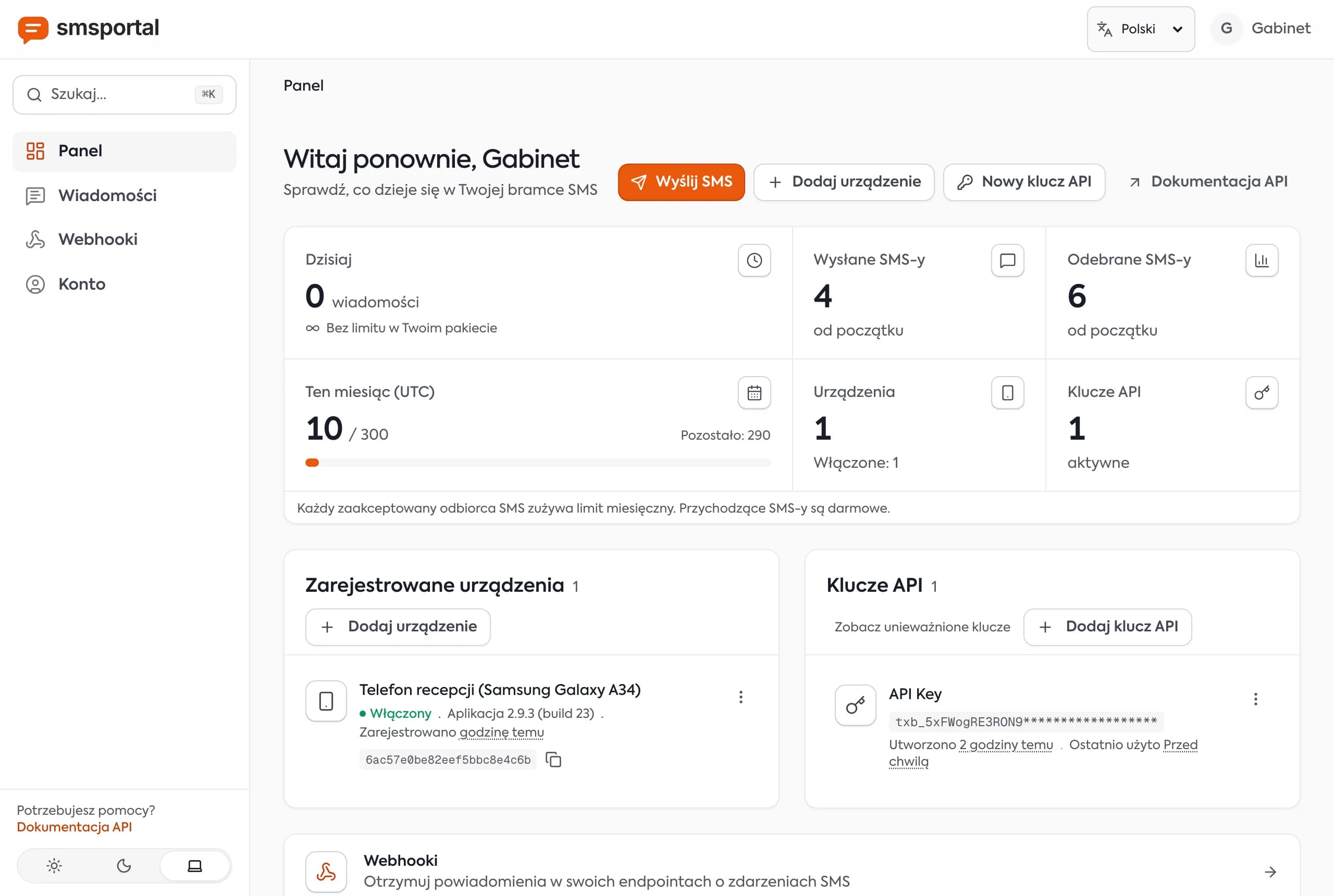
You need an n8n instance (cloud or self-hosted), a smsportal account with an Android phone connected, and an API key. The phone is a one-time setup with a QR code, covered in the SMS API guide.
- an Android phone with a SIM card, linked to your account (Android app),
- an API key from the dashboard (create a free account),
- n8n with the HTTP Request and Webhook nodes.
Tip: save the key as a Header Auth credential (header name
x-api-key). That keeps it out of the exported workflow JSON.
How do you configure the HTTP Request node to send an SMS?
Set the method to POST, the URL to https://smsportal.app/api/v1/gateway/send-sms, add an x-api-key header and send a JSON body with recipients and message. The header is x-api-key, not Authorization. Using Authorization is the most common cause of a 401.
| n8n field | Value |
|---|---|
| Method | POST |
| URL | https://smsportal.app/api/v1/gateway/send-sms |
| Authentication | Generic Credential Type → Header Auth (x-api-key) |
| Send Body | on |
| Body Content Type | JSON |
| Specify Body | Using JSON |
Use n8n expressions to pull the number and text from the previous node:
{
  "recipients": ["{{ $json.phone }}"],
  "message": "Hi {{ $json.name }}, your appointment is tomorrow at {{ $json.time }}."
}
With several phones, add "deviceId". For dual-SIM phones, add "simSubscriptionId". To send later, add "scheduledAt" with an ISO 8601 time in the future.
Paste-ready HTTP Request node (JSON)
Copy the JSON below and paste it onto an empty n8n canvas with Ctrl+V (Cmd+V on Mac). It creates an HTTP Request node with the header and JSON body. Replace YOUR_API_KEY, or swap the header for a Header Auth credential.
{
  "nodes": [
    {
      "parameters": {
        "method": "POST",
        "url": "https://smsportal.app/api/v1/gateway/send-sms",
        "sendHeaders": true,
        "headerParameters": {
          "parameters": [
            { "name": "x-api-key", "value": "YOUR_API_KEY" }
          ]
        },
        "sendBody": true,
        "specifyBody": "json",
        "jsonBody": "={\n  \"recipients\": [\"{{ $json.phone }}\"],\n  \"message\": \"{{ $json.message }}\"\n}",
        "options": {}
      },
      "name": "Send SMS (smsportal)",
      "type": "n8n-nodes-base.httpRequest",
      "typeVersion": 4.2,
      "position": [460, 300]
    }
  ],
  "connections": {}
}
The node expects the previous node to supply phone and message. Use international format, for example +14155550123.
Recipe 1: a new Google Sheets row sends an SMS
The Google Sheets Trigger with the Row added event starts the workflow when a row appears, and HTTP Request texts the number in that row. The trigger polls the sheet, so delivery follows its polling interval rather than being instant.
- Google Sheets Trigger → event Row added, pick your sheet. Columns such as
phone,name,message. - HTTP Request → settings from the table above, body using
{{ $json.phone }}and{{ $json.message }}. - (optional) Google Sheets → Update row: write the API response into a
statuscolumn.
This suits simple notifications for a small business: a form writes a row, the customer gets a confirmation. For one message to hundreds of people, see bulk SMS from a CSV file.
Recipe 2: a customer reply goes to Slack or Telegram
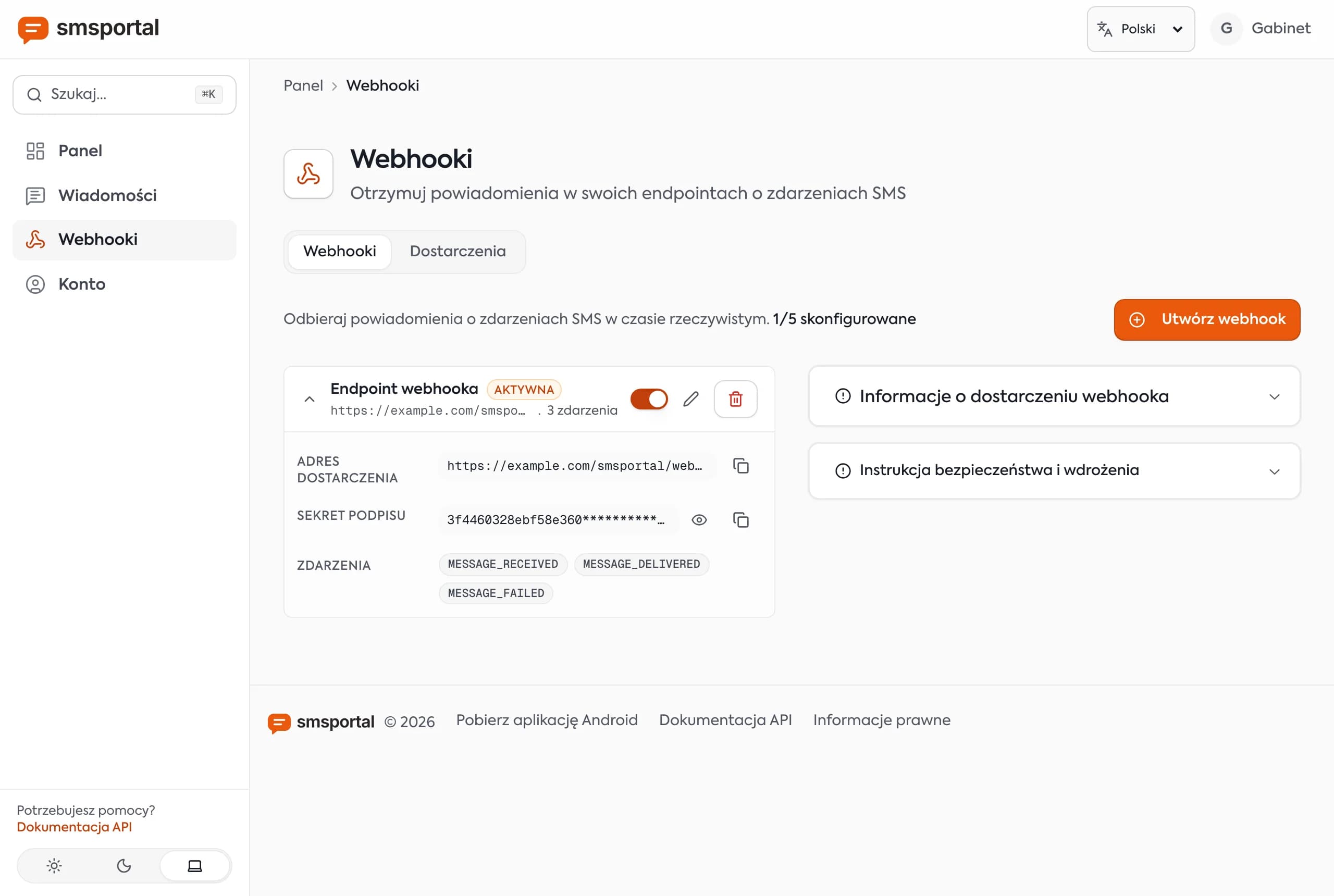
The customer replies to your number, smsportal posts a MESSAGE_RECEIVED event to your Webhook node, and n8n forwards it to a chat app. Your team sees replies without opening the dashboard.
- Webhook → method
POST, path such asincoming-sms. Copy the Production URL. - In the smsportal dashboard open Webhooks, add the URL and tick
MESSAGE_RECEIVED. - Slack (Send a message) or Telegram (Send Message) with the text
SMS from {{ $json.body.sender }}: {{ $json.body.message }}.
The Webhook node puts the request data under body, so expressions use $json.body.sender and $json.body.message. Each delivery also carries an idempotencyKey and an X-Signature header (HMAC-SHA256 of the body). Verification details are in the guide to receiving SMS with a webhook.
Note: register the production URL (without
webhook-test) and activate the workflow. The test URL only works while the editor is listening.
Recipe 3: an AI step drafts the reply
After the Webhook node, add an AI node such as AI Agent or Basic LLM Chain with a chat model to draft a reply from the incoming text, then send it with the same HTTP Request node. Start by routing drafts to a human for approval.
- Webhook (
MESSAGE_RECEIVED) providessenderandmessage. - AI Agent / Basic LLM Chain, prompt: "Reply politely in under 160 characters, plain ASCII. Customer message: {{ $json.body.message }}".
- HTTP Request:
recipients={{ $('Webhook').item.json.body.sender }},message= the model output.
For a setup where the model itself reads and sends texts, see SMS for AI agents through MCP. A hybrid also works well in n8n: the AI proposes, you approve in Slack, then the text goes out.
How long can an SMS from n8n be?
A GSM-7 message holds 160 characters per segment. A single character outside the GSM-7 alphabet, such as an emoji or a Polish "ł", switches the whole message to UCS-2 and drops the limit to 70 per segment. Longer messages are joined from segments of 153 (GSM-7) or 67 (UCS-2) characters.
| Text | Encoding | One-segment limit |
|---|---|---|
Hi Anna, see you tomorrow at 10:00. | GSM-7 | 160 characters |
Hi Anna, see you tomorrow at 10:00 😊 | UCS-2 | 70 characters |
The compose screen in the Android app shows a live counter for characters and segments.
How do you track status and failures?
The HTTP Request node tells you the message was accepted, not delivered. "Sent" means the phone handed the SMS to the carrier; "delivered" comes from the carrier's delivery report. To react to failures, build a second workflow with a Webhook on MESSAGE_FAILED.
MESSAGE_SENT: the phone sent the message,MESSAGE_DELIVERED: the carrier confirmed delivery,MESSAGE_FAILED: includeserrorCodeanderrorMessage, handy for a Slack alert.
Enable Retry On Fail on the HTTP Request node so a brief network error does not drop a message. Remember that an offline phone holds queued messages for up to 72 hours, then they expire.
How do you test the workflow before going live?
Run the workflow against your own number before real customers are involved. Execute the HTTP Request node manually, check the response in n8n and the message status in the dashboard, then activate the trigger and switch to production data.
- Hard-code your own number in international format (
+14155550123) and a short ASCII text. - Click Execute step. The API response should be a 2xx.
- Watch the status move from queued to sent to delivered in the dashboard's Messages tab.
- Reply from a second phone while the Webhook node is on Listen for test event. The event should appear in the editor.
- Only then activate the workflow and paste the production URL into the dashboard.
Tip: while testing, put an IF node in front of the HTTP Request that only lets your own number through. A bad spreadsheet row then cannot text customers.
Troubleshooting: why is my n8n SMS not working?
Most failures come from five causes: the wrong header, a number without a country code, an offline phone, an unreachable webhook URL, or non-GSM characters. Here are the symptoms and fixes.
| Symptom | Cause | Fix |
|---|---|---|
| 401 in the HTTP Request node | Authorization header instead of x-api-key, or a wrong key | Send x-api-key with the key from the dashboard. With Header Auth, check the header name is exact |
| 400, or the text never arrives | Number without a country code (e.g. 4155550123) | Use E.164 format with a leading + and country code. Add the prefix in an n8n expression if the source lacks it |
| API says OK, but the message stays queued | The phone is offline or battery optimization pauses the app | Check signal, internet and the device health screen. Queued messages wait up to 72 hours, then expire |
| Webhook never fires | The URL is not a public HTTPS address, or you registered the test URL | Register the Production URL and activate the workflow. A self-hosted n8n on localhost is not reachable from the internet: use a tunnel or set the public address in the WEBHOOK_URL variable |
| One text counts as several segments | An emoji or accented letter switched the encoding to UCS-2 | Remove those characters or keep the text under 70. The compose screen shows the segment count |
When events seem to be missing, open Executions in n8n. If a webhook call is listed there, the problem is in your nodes; if nothing is listed, the problem is the URL.
Limits: what not to do with n8n and a phone
An own-number phone gateway fits transactional messages, two-way conversations and alerts. The phone sends with a pause between messages (5 seconds by default), and carriers may block bulk sending from consumer SIMs, so do not use it for blasts of thousands per hour. For marketing volume pick a wholesale provider; see what an Android SMS gateway is and when not to use one.
Next step
Create a free smsportal account, connect a phone, paste the JSON above into n8n and text your own number. Request fields are in the API docs, and plans are on the pricing page.
Frequently asked questions
Is there a native smsportal node in n8n?
No. There is no native smsportal node, so you use two generic nodes: HTTP Request to send and Webhook to receive. Setup takes a few minutes and the same pattern works in every workflow.
How do I authenticate the n8n HTTP Request node?
Send an x-api-key header with the API key from your smsportal dashboard. Store it as a Header Auth credential so the key is not embedded in the workflow JSON when you export or share it.
How do I receive an SMS reply in n8n?
Create a workflow that starts with a Webhook node set to POST, copy its Production URL, and add it in the smsportal dashboard under Webhooks with the MESSAGE_RECEIVED event. The reply text and phone number arrive as message and sender.
Why does my webhook work in test mode but not after activation?
n8n uses two URLs: a test URL that is live only while the editor is listening, and a production URL that is live once the workflow is active. Register the production URL in smsportal and make sure the workflow is switched on.
Can n8n send thousands of texts at once?
n8n can fire the requests quickly, but the phone sends SMS with a pause between messages (5 seconds by default, about 720 per hour per phone). Spread large batches over time or add more devices.