

Message history and statuses
Updated:
The history is a list of all SMS your phones sent and received. You open it in the “Messaging” menu, on the “History” tab. Each message has a coloured label with its status. The status updates by itself when the phone and the carrier report something new.
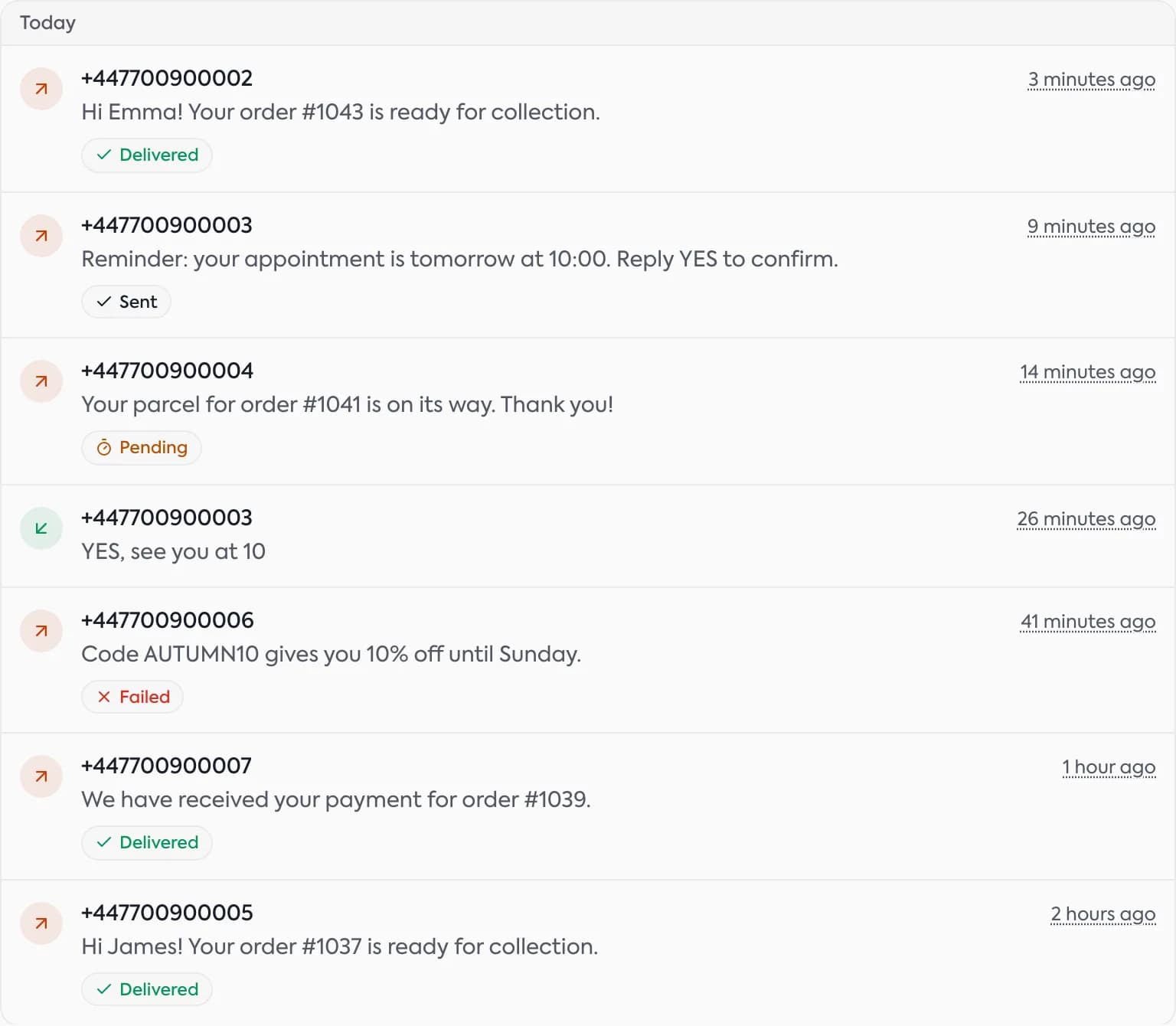
What each status means
| Status | What it means | What to do |
|---|---|---|
| Pending | The dashboard accepted the message, but the phone has not sent it yet. | Wait a moment. If it takes long, check that the phone is on and has internet. |
| Dispatched | The server handed the message to the phone, and the phone has not reported sending yet. | Wait. If the status does not change, check the battery settings and app permissions. |
| Sent | The phone handed the message to the carrier. | Nothing. Wait for “Delivered”. |
| Delivered | The carrier confirmed that the SMS reached the recipient. | Nothing, all went well. |
| Failed | The message did not go out. | Open it and read the reason, then send it again. |
| On hold | The message waits because the bulk send it belongs to was paused. | Resume the send in the “Active bulk sends” section. |
| Unknown | We have no certain information about the message state. | Check the phone and refresh the list. |
| Received | An incoming message, not sent by you. | You can answer with the “Reply” button. |
A message can also become “Failed” if it had an expiry time and the phone did not manage to send it in time. The error code is then expired.
Check the details and fix an error
- Click a message in the list.
- The window shows the number, the text, the status, the phone and the date.
- For a “Failed” message a “Delivery failed” section appears with an error code. If the app lacks the SMS permission, click “How to fix it”.
- Click “Follow up” to write to the same recipient. For a received message the button is called “Reply”.
- If the message comes from a bulk send, “Messages in this batch” shows all messages of that send.
More about missing SMS: An SMS is not being sent.
Filters and search
- The “Search messages or numbers” field searches the text and the number.
- The direction switch shows “All”, “Sent” or “Received”.
- The device filter narrows the list to chosen phones.
- The “Filters” button opens a window with “Status”, “Date” (from–to), “Sort” and “Batch ID”. Confirm with “Apply”; “Reset” restores the defaults.
- The refresh icon (“Refresh messages”) reloads the list. You can also turn on auto refresh every 15, 30 or 60 seconds.
Applied filters show as small labels above the list. Click “Clear filters” to remove them.
Questions and answers
- Why does a message stay “Pending” for so long?
- The phone has not sent it yet. Most often it is off, offline, or the system put the app to sleep. Check the phone status in the dashboard.
- Does “Sent” mean the recipient got the SMS?
- Not yet. “Sent” means the phone handed the message to the carrier. Only “Delivered” is a confirmation from the carrier.
Related guides
Didn’t find the answer? Contact us