

Webhooks: notifications to your system
Updated:
A webhook works like a text message with a notification, only sent to your program instead of a person. When something happens in SMS Portal|app, our server sends a short message with data to the address you give. Your program can then, for example, save a customer’s reply in its own database.
Add a webhook
- In the dashboard menu click “Webhooks”.
- Click “Create Webhook”.
- In “Name (optional)” type a short name, for example “Production CRM”. It helps you tell webhooks apart.
- In “Delivery URL” enter an address in your system. The server sends POST requests there.
- In “Signing Secret” type your own string or click “Generate”. The secret lets you check that the data really comes from us.
- In “Events” tick at least one:
MESSAGE_RECEIVED(SMS received),MESSAGE_SENT(sent),MESSAGE_DELIVERED(delivered) orMESSAGE_FAILED(did not go out). - Click “Create”.
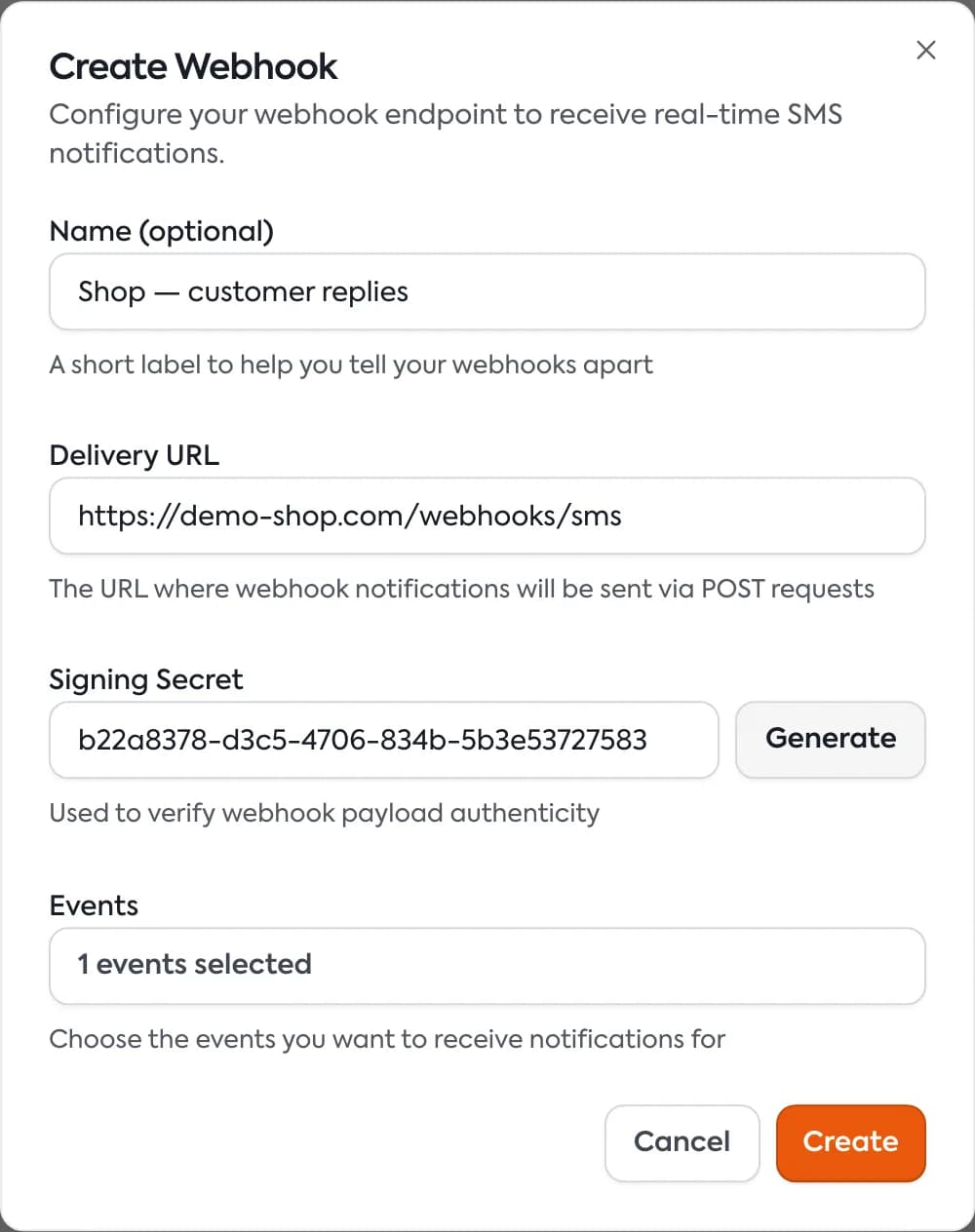
On the webhook card you can switch it off and on, edit it, copy the URL, and show or copy the secret. You can have up to 5 webhooks.
What your system receives
Each notification is a POST request with data in JSON format and an X-Signature header. The data includes, among other things, the message ID, the number, the text, the device ID and the event name in the webhookEvent field. Samples of every event are at the bottom of the Webhooks page, in “Security & Implementation Guide”.
Your system should:
- Accept the POST request.
- Answer with a 2XX code, for example 200.
- Do it within 10 seconds.
Check the signature
The X-Signature header is a signature calculated with HMAC-SHA256 from the data and your secret. Calculate it on your side and compare. If it does not match, reject the request. Ready examples in Node.js and Python are in the “Verification” tab on the Webhooks page.
Delivery log and retries
Click the “Deliveries” tab. You see every notification with the columns “Event”, “Device”, “Status”, “Delivery Url” and “Created At”. Clicking the eye icon opens the data that went to your system. Filters narrow the list by phone, webhook, event type, status and date.
| Status | What it means |
|---|---|
| Delivered | Your system answered correctly. |
| Pending | The notification waits for its first attempt. |
| Retrying | An attempt failed and the server will try again. |
| Failed | The server stopped trying. |
When your system does not answer correctly, we resend after: 3 minutes, 5 minutes, 30 minutes, 1 hour, 6 hours, 1 day, 3 days, 7 days and 30 days. A notification gets at most 10 attempts. For client errors (4XX codes) the server stops after the third attempt. A switched-off webhook no longer gets notifications.
Questions and answers
- How many webhooks can I have?
- Up to 5 per account. When you reach the limit, delete one to add another.
- What if my system does not answer?
- SMS Portal|app tries again after 3 minutes, then after 5 and 30 minutes, 1 hour and later, up to 10 attempts in total.
Related guides
Didn’t find the answer? Contact us