

API keys: create, store, revoke
Updated:
An API key is a long string of characters that works like a password for a program. Thanks to it, the app on your phone or your script can act on your behalf without signing in. Anyone who knows the key can send SMS from your account. Treat it like a password.
Create a key
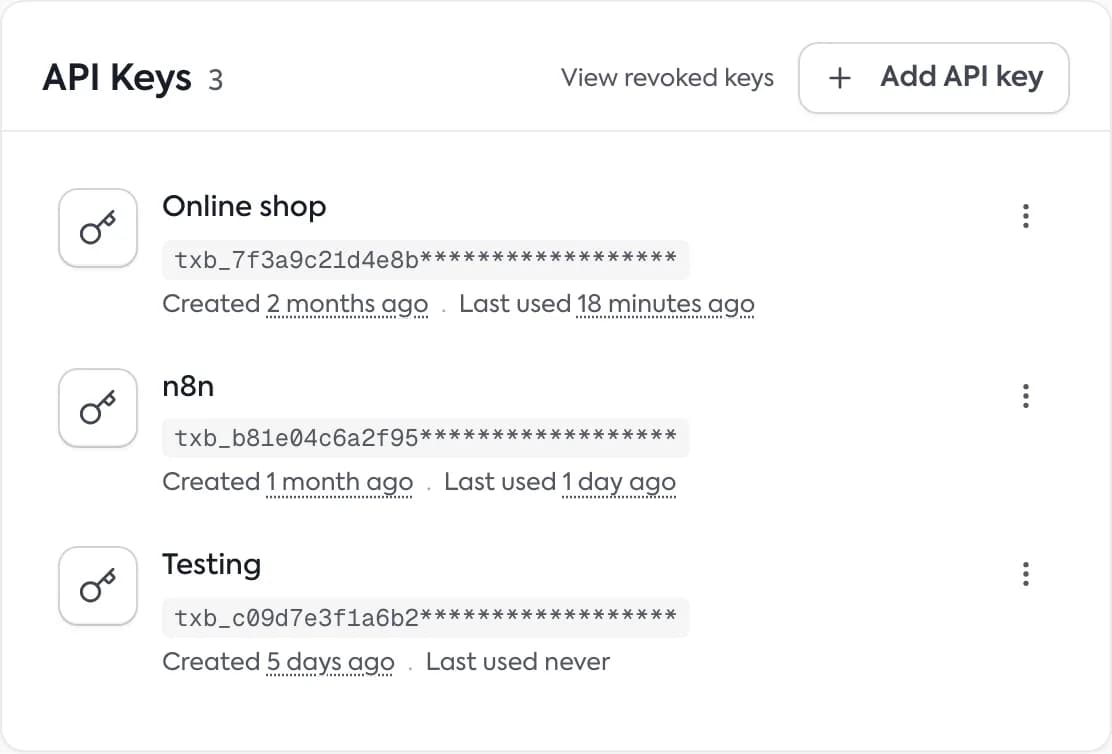
- Open the dashboard home page. Find the “API Keys” card.
- Click “Add API key”. On a small screen the button is called “New”.
- In the “Create new API Key” window click “Generate API Key”.
- In the “Your API Key” window click “Copy API key”.
- Store the key in a password manager or in your system’s secrets. Only then close the window.
Important: once you close the window you will not see the key again. If you did not save it, create a new one.
In the same window the dashboard tells you what the key is for:
- “For Device Registration”: open the app on the phone and scan the QR code, or type the key by hand. Details: Connecting the phone to your account.
- “For External Services”: copy the key and use it in your program. In API requests pass it in the
x-api-keyheader.
Manage keys
The list shows the name, the creation date and when the key was last used, or “never used”. Each key has an actions menu.
- Renaming. Choose “Rename”, type a new name and click “Save”. A good name says where the key works, for example “Web shop”.
- Revoking. Choose “Revoke”, read the warning and click “Revoke key”.
- Removing from the list. Click “View revoked keys”, then “Delete” next to the key. Removal is permanent and cannot be undone.
Switching a key off always means revoking it. There is no pause and re-enable.
When to revoke a key
- The key leaked, ended up in a public repository or in a chat.
- A person who knew it left the company.
- You no longer use the program the key belonged to.
Revoking immediately switches the key off in all apps, servers, scripts and on phones. So do it in this order:
- Create a new key.
- Replace the old one everywhere it was used.
- Only then revoke the old key.
- Reconnect any phone that used the old key with the new one.
Storing keys safely
- Do not paste the key into code that goes to a repository. Keep it in an environment variable or a secrets manager.
- Do not send the key by email or in a chat.
- Create a separate key for each program. Then you revoke only one.
Questions and answers
- Can I see the key after closing the window?
- No. The window shows the key only once. If you lose it, create a new key.
- What happens when I revoke a key?
- The key stops working everywhere: in apps, scripts, on servers and on phones that use it.
Related guides
Didn’t find the answer? Contact us