

Sending an SMS from the dashboard
Updated:
On this page
You send a single SMS from the “Send SMS” card. The dashboard hands the message to your Android phone. The phone sends it from its own SIM card. So you need a connected phone. If you do not have one yet, start with the first SMS guide.
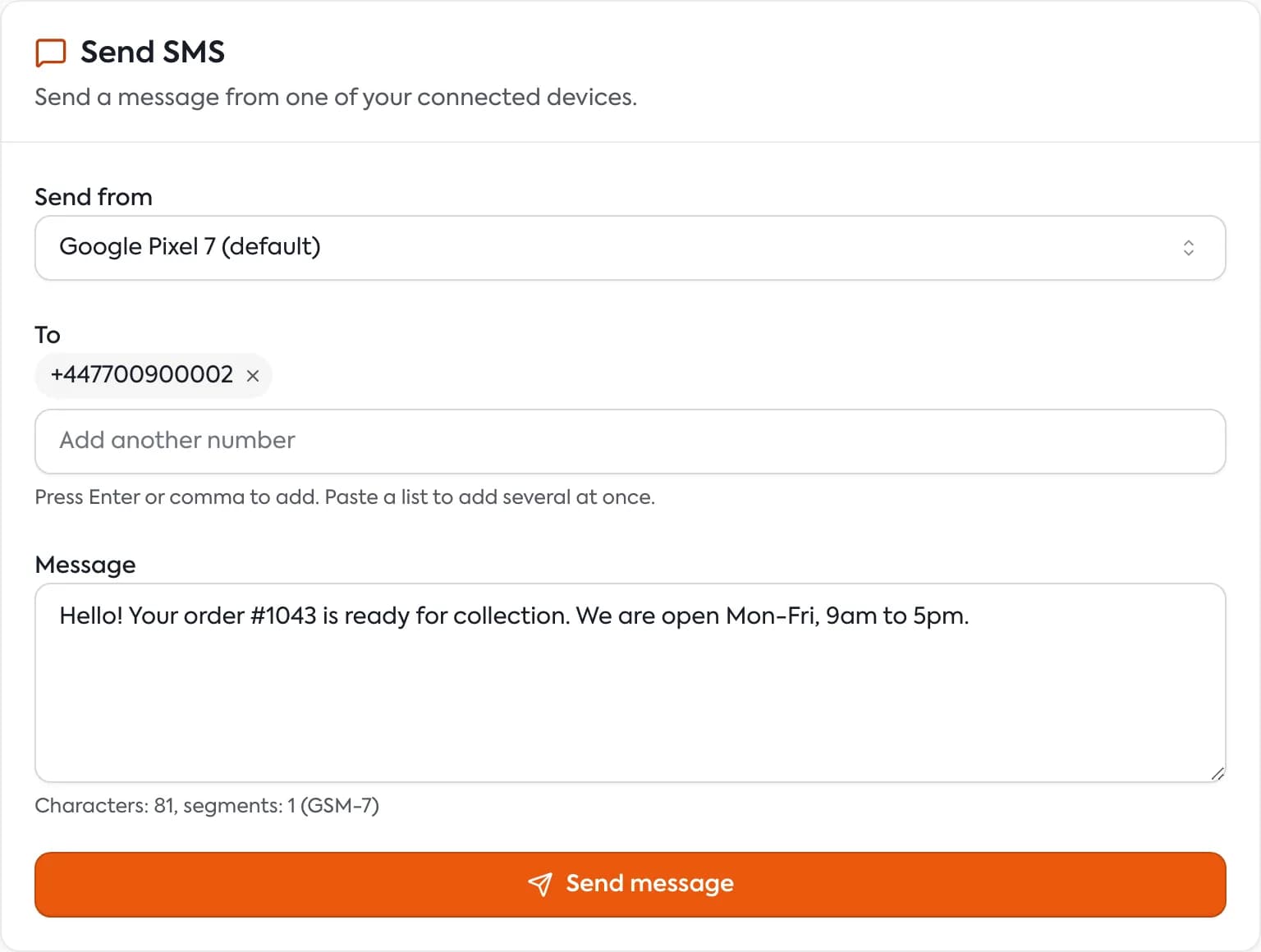
Send a message
- In the left menu click “Messaging”. The “Send” tab opens.
- In the “Send from” field choose a phone. If you have one enabled phone, the dashboard picks it for you. A phone set as default shows “(default)” next to its name. Disabled phones show “(disabled)” and cannot be selected.
- If the phone has two SIM cards, a “SIM (optional)” field appears. Choose a card or keep “Default SIM”.
- In the “To” field enter the recipient’s number, ideally with the country code, for example
+14155550101. Press Enter or comma to add it. You can also paste a whole list of numbers at once. - In the “Message” field write the text. Under the field a counter shows, for example, “Characters: 42, segments: 1 (GSM-7)”.
- Click “Send message”. With several recipients the button reads “Send to 3 recipients”.
After sending you see “Message sent”. The form clears, but the phone stays selected. Check the delivery status in the message history.
Character counter and SMS parts
A single SMS has a limited length. The phone splits a longer message into parts, and the carrier treats each part as a separate SMS.
- A message without special characters fits 160 characters in one part (GSM-7 encoding).
- One character outside the basic set, such as a Polish ą, ę, ł or ż, or an emoji, switches the message to UCS-2 encoding. Then one part holds only 70 characters.
- When a message has several parts, the counter warns “Over 153 characters counts as multiple messages” (67 for UCS-2).
More in Special characters and SMS length.
When sending fails
A message “Could not send” with the reason appears above the button. If the app on the phone lacks the SMS permission, the dashboard shows a red box with steps:
- On the phone open Settings → Apps → SMS Portal|app → Permissions.
- On Android 15 and newer open the menu (⋮) and choose “Allow restricted settings”.
- Set SMS to Allow.
Then click “Send again” in the same box.
A single message versus a bulk send
Single SMS messages always go out at once. The pace and pauses of the anti-ban shield apply only to a bulk send from a CSV file.
Questions and answers
- How long can a message be?
- The form accepts up to 1,600 characters. For longer texts the counter shows how many SMS parts the message splits into.
- Can I send one message to several people?
- Yes. Add several numbers in the “To” field and the button changes to “Send to N recipients”.
Related guides
Didn’t find the answer? Contact us